OTA Firmware Updates via the Meshtastic App
The Meshtastic app now includes built-in firmware update support for nRF52, ESP32, and USB DFU-compatible devices. You no longer need the separate Nordic DFU Utility or nRF Connect app.
Before You Start
- Make sure your Meshtastic app is v2.7.8 or newer (check the Google Play or iOS Store for updates)
- Plug your phone in or ensure it has plenty of battery — updates can take several minutes
- Keep your phone awake during the update (on Android you can go to Settings > Developer Options > Stay Awake while charging)
If you don't see Developer Options, go to Settings > About Phone and tap Build Number 5 times to enable it.
Steps to Update
1. Connect to Your Device
Open the Meshtastic app and connect to the node you want to update via Bluetooth or USB.
2. Open the Firmware Update Screen
Navigate to Settings (gear icon) and look for the Firmware Update option.
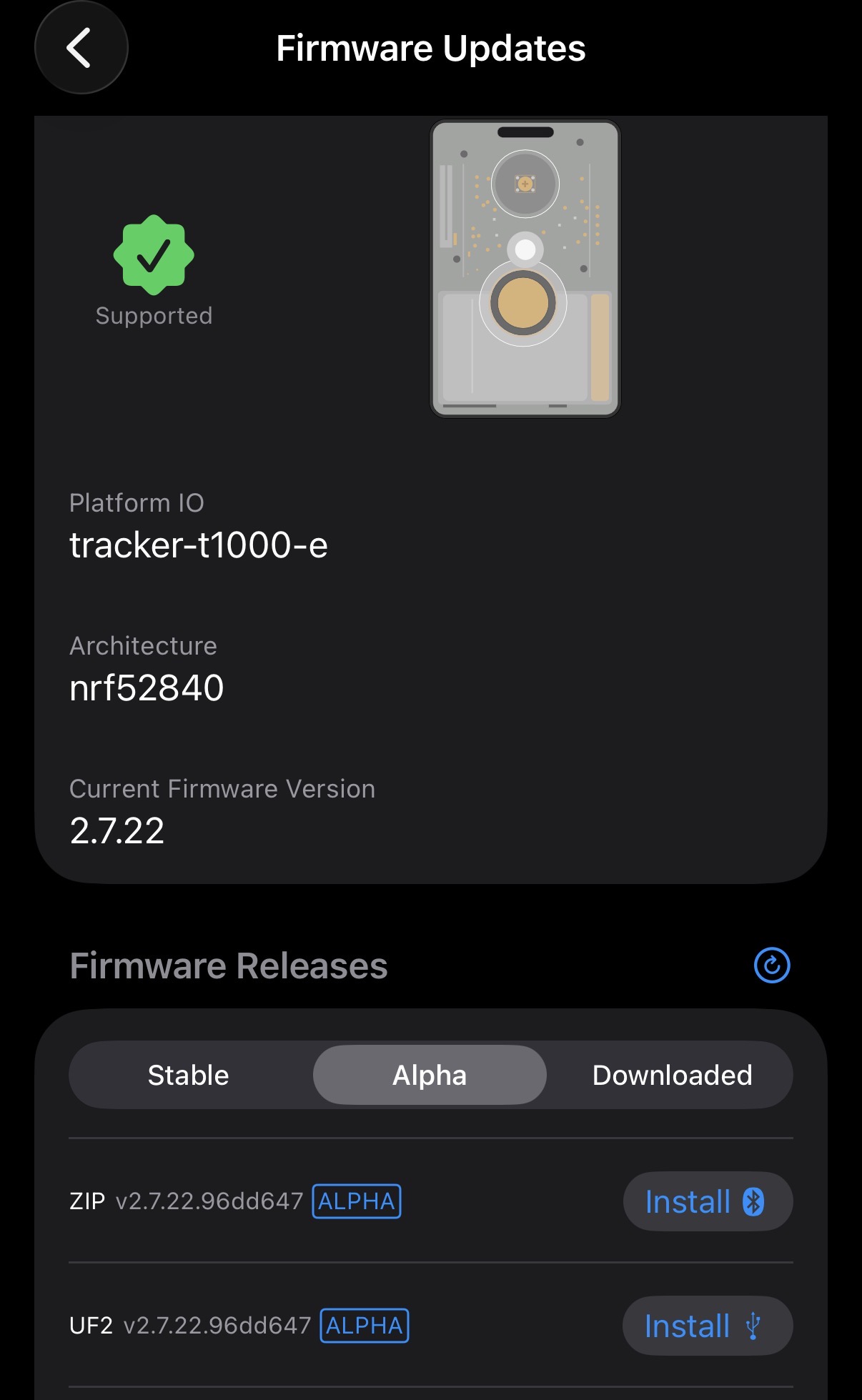
3. Select and Apply the Update
The app will check for available firmware and guide you through the update process. Follow the on-screen prompts to download and flash the new firmware. Note that the Alpha updates are inherently unstable. Use at your own risk!
4. Wait for Completion
The update will transfer over Bluetooth or USB. Do not disconnect or let your phone sleep during this process — the device will reboot automatically when finished.
Supported Devices
| Device Type | Update Method | Supported Since |
|---|---|---|
| nRF52 (e.g., RAK4631, T-Echo) | Bluetooth OTA | App v2.7.8 |
| ESP32 (e.g., T-Beam, Heltec) | Unified OTA | App v2.7.11 |
| USB DFU devices | USB OTG | App v2.7.9 |
Troubleshooting
- Update not appearing? Make sure your Meshtastic app is up to date from the iOS / Play Store.
- Update interrupted? If your phone sleeps or disconnects mid-transfer, the device may need to be recovered via USB. See the official Meshtastic flashing guide for recovery steps.